ShopHQ drop ship EDI with Sellercloud: orders, Radial codes and packing slips
How ShopHQ drop ship vendors on Sellercloud handle EDI through Radial's VendorNet: orders in, ship notices with Radial's codes, invoices, stock and ShopHQ-style packing slips.
· 3 min read

On this page
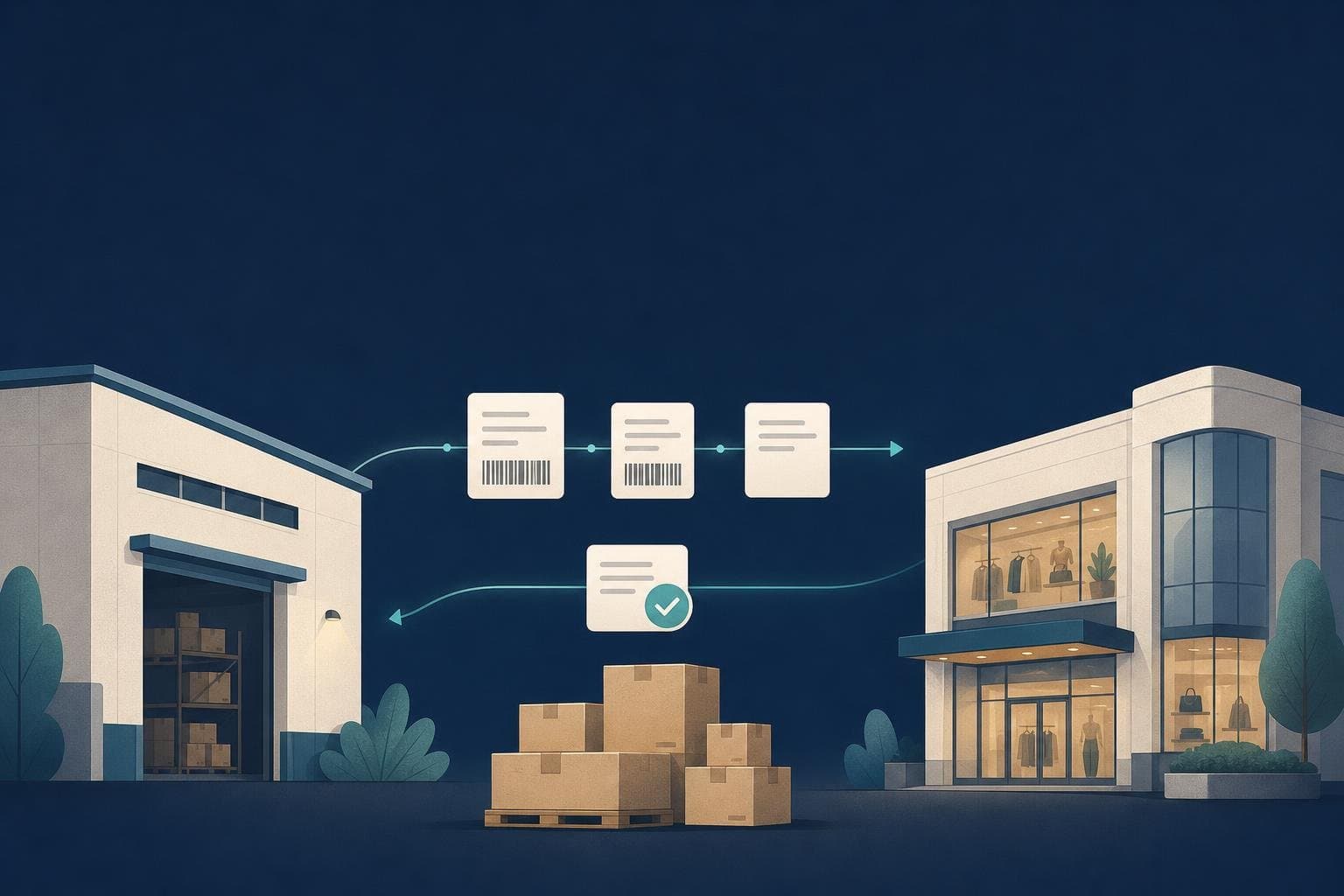
ShopHQ sells through TV and online, and many of the products it sells are drop shipped straight from the vendor. Those orders reach you as EDI files through Radial's VendorNet, and ShopHQ expects ship notices, invoices and stock to come back the same way. This post explains how that works when you fulfil from Sellercloud, and the two things that most often trip vendors up: carrier codes and packing slips.
What goes back and forth
| Document | Direction | What it does |
|---|---|---|
| 850 purchase order | ShopHQ → you | Read from Radial's SFTP server and created in Sellercloud |
| 997 confirmation | You → Radial | One per order file once its orders are imported, accepting or rejecting each |
| 856 ship notice | You → Radial | Sent when Sellercloud has tracking, using Radial's ship-method codes |
| 810 invoice | You → Radial | Sent with the shipment |
| 846 stock | You → Radial | Your available quantity on a schedule, after any stock you hold back |
Radial also sends a 997 back for each file you send, so you can see what was received.
Radial's ship-method codes
Radial expects its own code for each carrier and service on the 856, not the names Sellercloud uses. In interSend you map each Sellercloud carrier and service to Radial's code once, under Shipping & alerts. If an order ships with a method you have not mapped yet, the shipment waits and the order page and dashboard say so and ask for the code. Save it and the ship notice goes out, and every later order with that method goes out on its own.
Packing slips in ShopHQ's style
Drop ship parcels go to ShopHQ's customers, so the slip inside should look like it came from ShopHQ. interSend attaches a slip to each Sellercloud order. ShopHQ connections start with the slip modelled on ShopHQ's, with their logo. If you would rather use your own, the Packing slip tab has a designer: your logo, colour, font, return address, which details to show (order and ship-by dates, prices, SKU, UPC, gift message) and a footer for your returns policy, with a preview that is exactly what gets printed.
Testing before ShopHQ sees anything
A new connection starts paused with both write switches off:
- Start a test run reads a real 850 and shows it, creating nothing. Files read in Test stay in Radial's folder rather than being moved.
- Turn on Create orders in Sellercloud, run again, and check the order in Sellercloud.
- Preview shows the 997, 856, 810 and 846 the next run would send, with their contents, without sending anything.
- Turn on Send to partner when Radial is ready, then set the connection to Live to start the schedule.
Day to day
Every order's page shows its progress and the files exchanged for it. On EDI files, the Needs you tab lists anything Radial rejected or never confirmed, with the reason and a Send again button. A failed order is tried again on every run, but you are alerted only the first time, and again if the reason changes.
Find the full file list on the ShopHQ integration page, or book a setup call to go through Radial's onboarding with us. Every plan starts with a 14-day free trial.
About the author
Connect your retail partners to Sellercloud with interSend
Orders in; ship notices, invoices and stock out, with plain-English alerts when something needs you. It starts paused, and nothing is sent until you switch it on.
Book a setup call (opens in a new tab)On the call we create your company's account with you and get your first partner live. You then choose a plan in the app, which starts the free trial.
Keep reading
Jay· · 5 min read
An EDI order failed in Sellercloud. Now what?
A short, repeatable routine for the day an 850 doesn't land in Sellercloud or an 856 bounces: find it, see what the partner actually sent, fix the one thing that's wrong, and re-run it.
edisellercloudtroubleshootingintersend

Emma· · 4 min read
Rooms To Go EDI with Sellercloud: what SPS Commerce expects and how to get certified
A furniture supplier's guide to Rooms To Go EDI through SPS Commerce: the six documents, what makes their spec different, and testing in SPS's folders before going live from Sellercloud.
rooms to goedisps commercesellercloud
Jay· · 4 min read
EDI 856 and 997 explained: getting ship notices right with Sellercloud
What an EDI 856 advance ship notice and a 997 acknowledgment contain, why retailers reject them, and how to catch a rejected or unconfirmed file before it costs you.
edi856997sellercloud